WCF Service Role enables us to create WCF service and host in Windows Azure. In this article, we will create a WCF Service Role and host on local development fabric and consume in a console application. In second part of this article we will move WCF Service to Azure portal.
To start with,
1. Create a New Project
2. Navigate to cloud tab
3. Create Windows Azure Project
4. Select WCF Service Role from given options.

If you give a look in solution explorer, you will find in WCF Service Role project contains exactly the same structure and files as of when you create a normal WCF Service Application. It contains ,
1. IService1.cs (Service Contract )
2. Service1.svc.cs ( Service definition file )
3. Web.config ( configuration for EndPoints)
We can modify these files accordingly for our purpose in exactly the same way; we do in usual WCF Service Application.
Let us modify Service Contract as below,
IService1.svc
using System.ServiceModel;

namespace WCFServiceWebRole1
{
 [ServiceContract]
 public interface IService1
 {

[OperationContract]
 string GetData(int value);

 }
}
And service definition would be,
Service1.svc.cs
namespace WCFServiceWebRole1
{

 public class Service1 : IService1
 {
 public string GetData(int value)
 {
 return string.Format("You entered: {0}", value);
 }

 }
}
Leave default configuration in Web.Config
Make sure you have set Windows Azure project as Startup project and run the application. In browser you will get below error message.

Ignore this message and append service.svc with URL, so now URL would be http://127.0.0.1:81/service1.svc. Service.svc is name of the service definition.
After appending you will get usual WCF Service message in browser.
After appending you will get usual WCF Service message in browser.

To test this WCF Service role in a console client,
1. Create a console application project
2. Add Service Reference by providing URL http://127.0.0.1:81/service1.svc

Now we will make a normal service call,
Program.cs
using System;
using ConsoleApplication14.ServiceReference1;

namespace ConsoleApplication14
{
 class Program
 {
 static void Main(string[] args)
 {
 Service1Client proxy = new Service1Client();
 var result = proxy.GetData(99);
 Console.WriteLine(result);
 Console.ReadKey(true);
 }
 }
}
Now when you run you may or may not get below exception.

To solve above exception, we have to edit App.Config file. We need to change
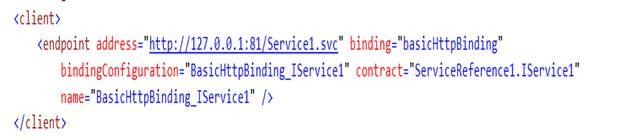
127.0.0.1 to localhost. Because it might be the case console application is not able to resolve 127.0.0.1 . we need to change to localhost.

Now on running we will get below output

One behavior need to be noticed here is that sometime you may get time out exception after changing 127.0.0.1 to localhost also. In my further articles, I will drill down this unwanted behavior.
Discover more from Dhananjay Kumar
Subscribe to get the latest posts sent to your email.
 Dhananjay Kumar
3 thoughts on “Windows Azure for Developers Task 8: Working with WCF Service Web Role”