In this walkthrough we will see how to connect from Local SQL server management studio to SQL Azure. Follow the below steps.
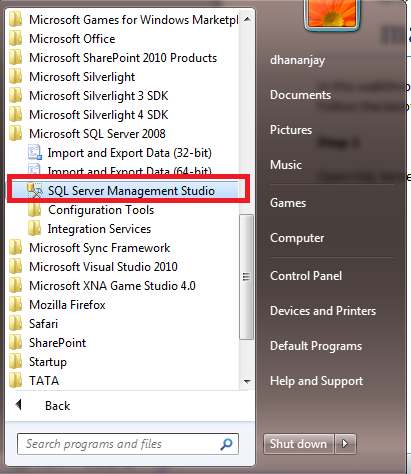
Open SQL Server management studio
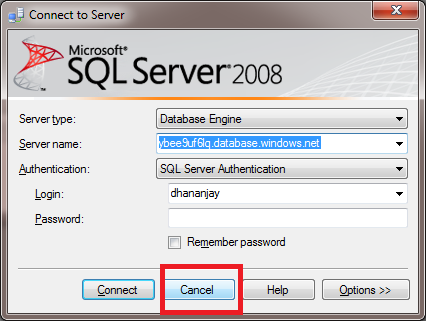
You will get Connect to server dialog box. Click cancel on that.
After cancelling the dialog box click on New Query from left top
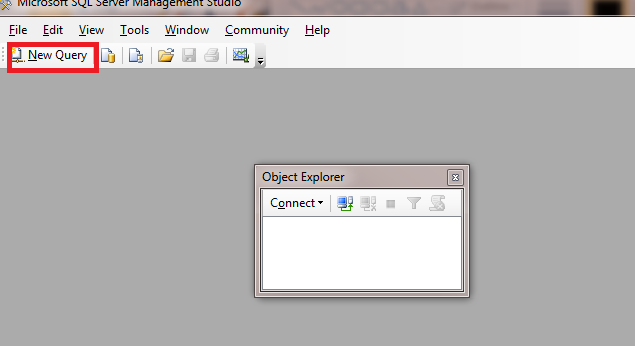
On clicking New Query, you will get the connect to server dialog box again.
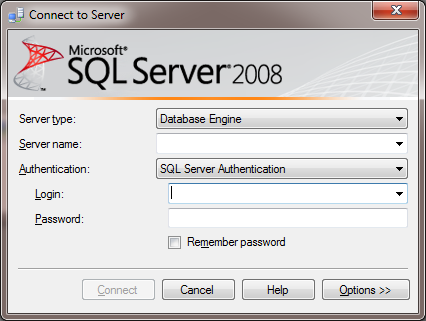
Now here you need to provide, Server name of SQL Azure and Login credential of SQL Azure.
To know what is database server name of SQL Azure portal, login to Windows Azure portal with your live credential and then click on SQL Azure tab
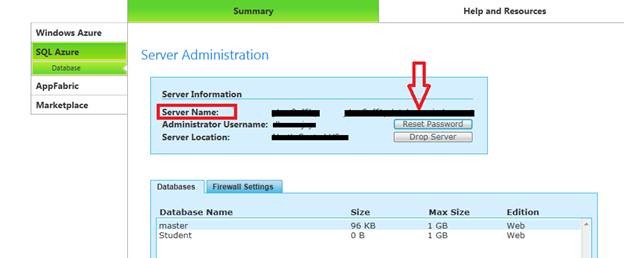
You will get the server name in form of
abc.database.windows.net
Where abc is name of your SQL Azure server. We need to provide this server name at local sql server management studio.
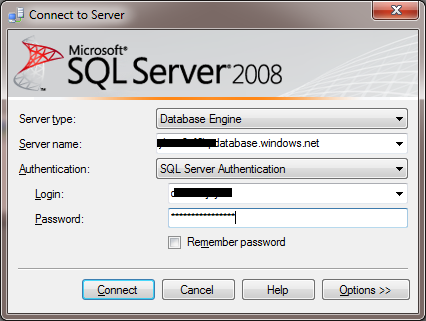
Make sure to select SQL Server Authentication and provide login user name and password of your SQL Azure database portal.
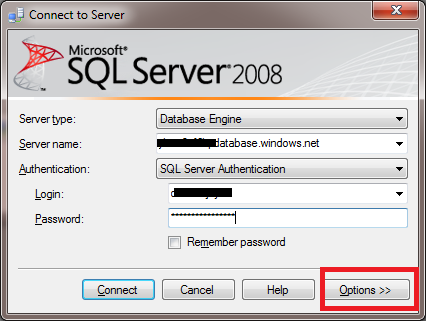
After that before clicking Connect click on Option
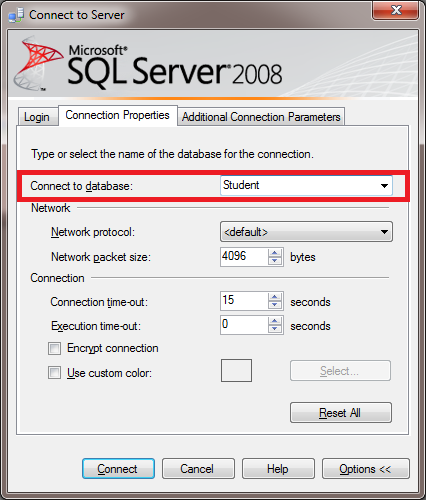
Provide the database name you want to connect by default. I am connecting to Student database.
Now click on Connect to connect to SQL Azure
On successful connection to test
select * from sys.databases
You will get listed all your SQL Azure databases.

Discover more from Dhananjay Kumar
Subscribe to get the latest posts sent to your email.
 Dhananjay Kumar