In this article, we will see how to create database in SQL Azure.
Step1
Login SQL Azure portal with your live credential
Step 2
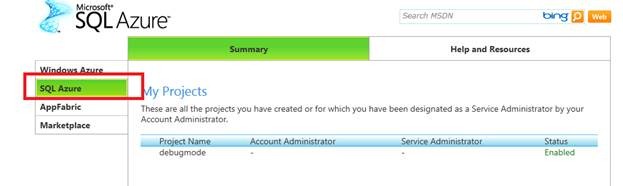
Click on SQL Azure tab. You will get the project , you have created for yourself.
Step3
Click on the project. In my case project name is debugmode. After clicking on project, you will get listed the entire database created in your SQL Azure account.
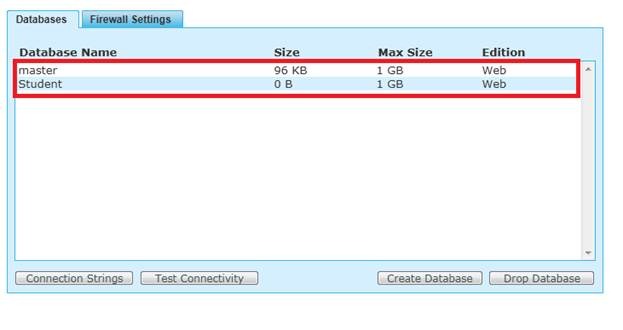
Here in my account there are two database already created. They are master and student database. Master database is default database created by SQL Azure for you.
Step 4
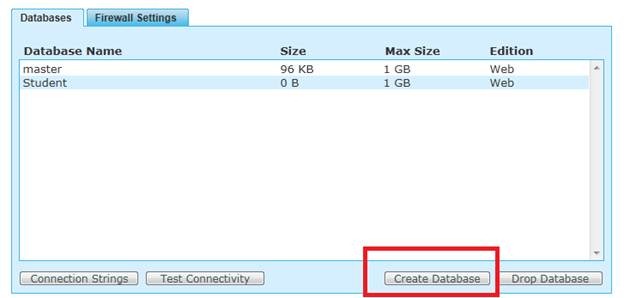
Click on Create Database
Step 5
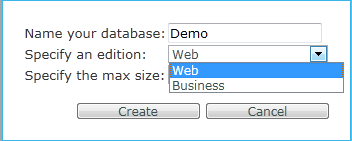
Give the name of your database. Select the edition as Web and specify the max size of database.
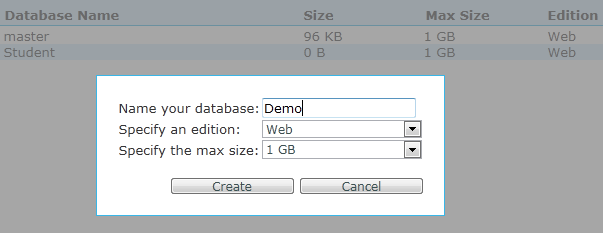
You can select other option also for the edition as business
Step 6
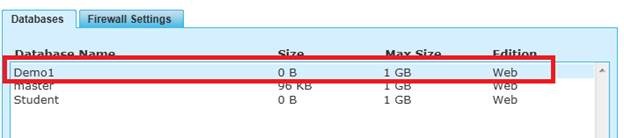
After that click on Create you can see on Databases tab that Demo database has been created.
Discover more from Dhananjay Kumar
Subscribe to get the latest posts sent to your email.
 Dhananjay Kumar