Objective
This article will give walkthrough step by step to how to configure SSP in MOSS 2007.
Step 1
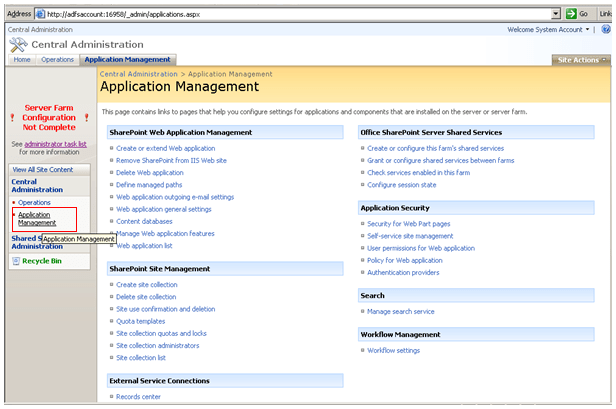
On the SharePoint administration home page, click the Application Management tab.
Step 2
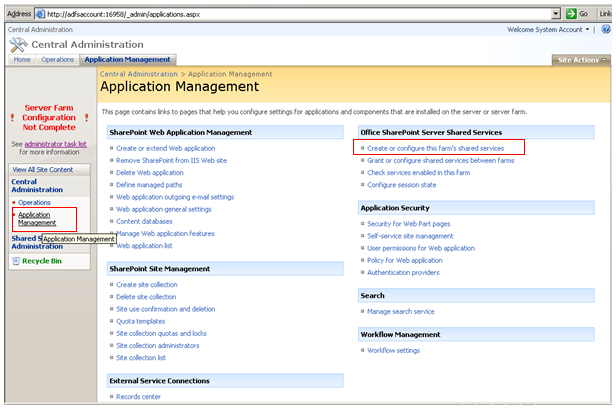
Now from Office SharePoint Server Shared Services click on Create or configure this farm’s shared services.
Step 3
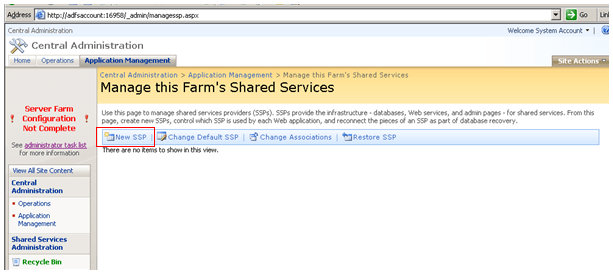
From Managed this Farm Shared Service selects or click New SSP
Step 4
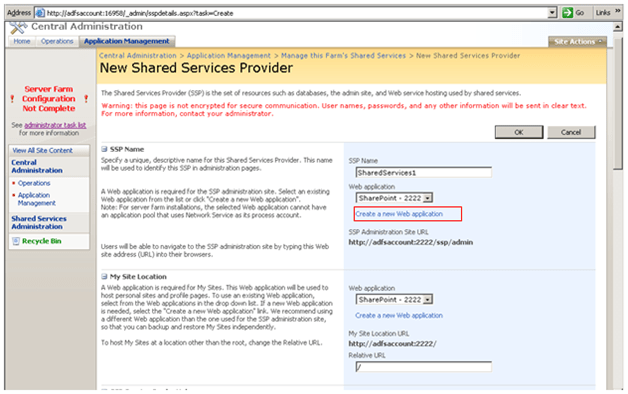
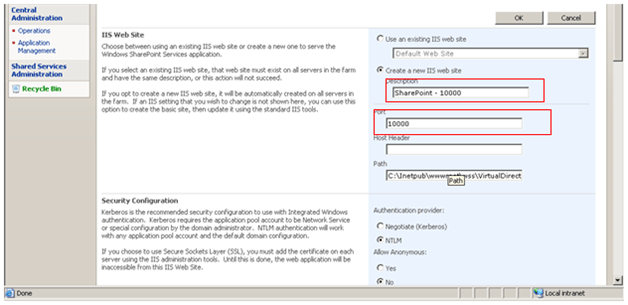
On New Shared service provider page click on Create New Web Application.
Step 5
- Provide the port number. I am creating on port 10000
- Provide the user name for the web application. Make administrator as user for this web application.
- Leave other settings as default. Do not modify anything else.
Click OK to create a new Web Application.
Step 6
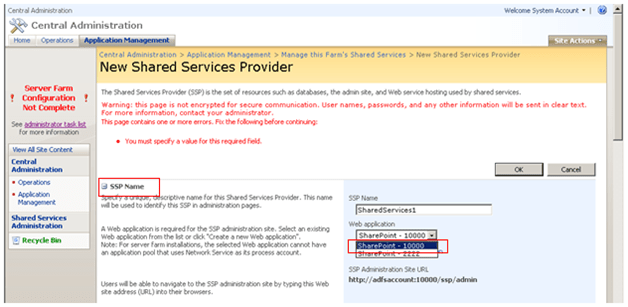
SSP name section
Now choose from dropdown the Web Application, you just created. Don’t modify any other default value here in this section.
Step 7
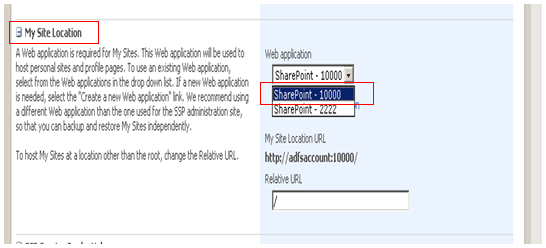
My Site Location section
Choose the same web application you created for the My Site
Step 8
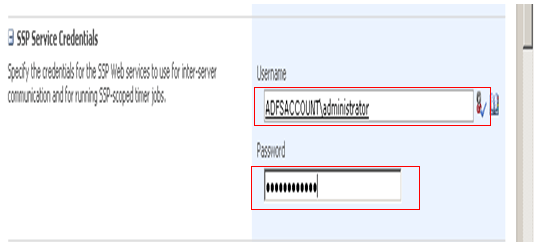
SSP Service Credential
Provide username and password for the account under which you want to run the SSP. Please make sure user is a domain user. User is not member of any security group.
Step 8
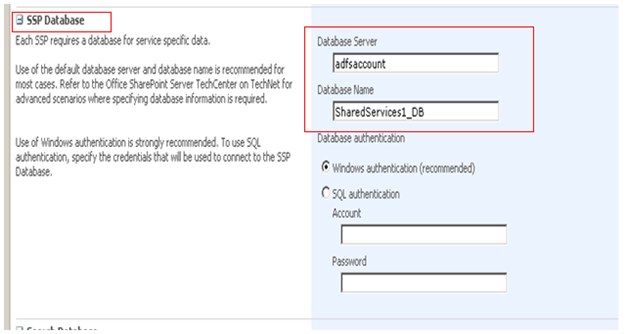
SSP Database
For this section leave the default settings.
Step 9
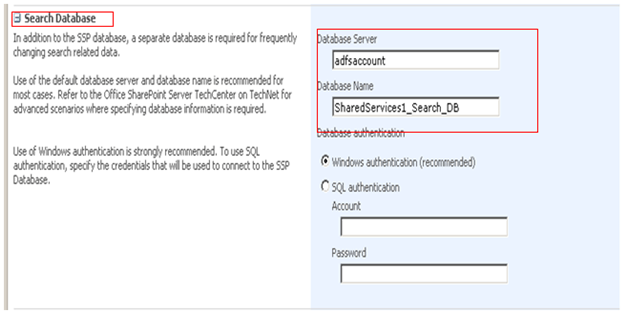
SSP Search Database
For this section leave the default settings.
Step 10
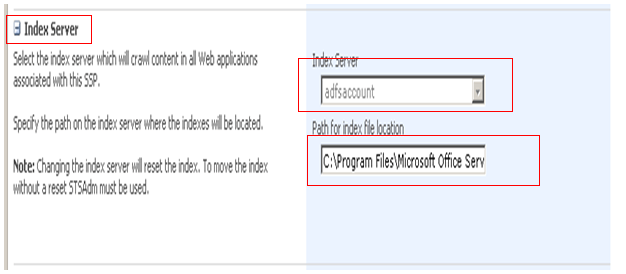
Index Server
Select the Index server over here.
Step 11:
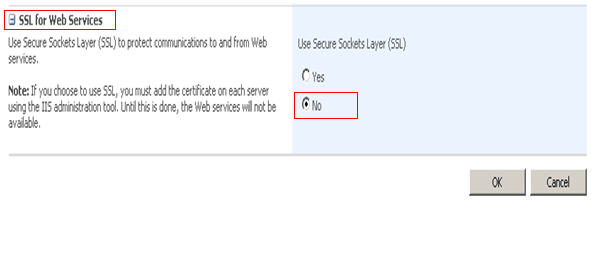
SSL for web services
Select No here.
Step 12
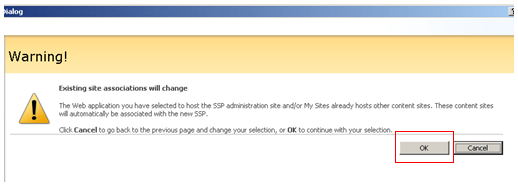
Click OK on any warning message.
Step 13
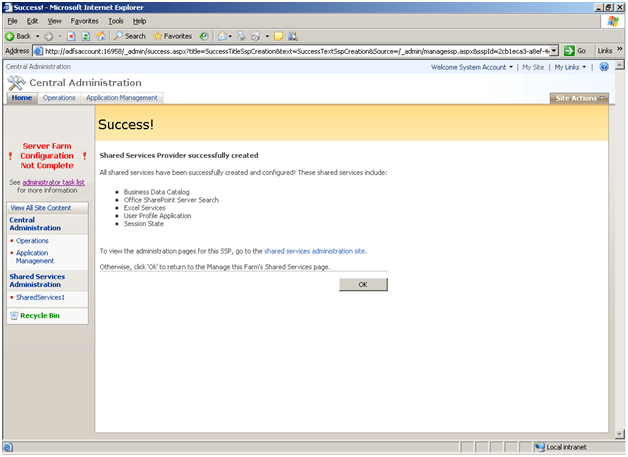
You will be getting a Success message.
Conclusion
I have shown in this article, how to configure a SSP for MOSS 2007.
Thanks for reading.
Happy Coding J
Discover more from Dhananjay Kumar
Subscribe to get the latest posts sent to your email.
 Dhananjay Kumar
Thank u.
Efficient artical
I have been able to create SSP and configure search correctly with no issues. I cannot figure out how to correctly configure the SSP once I enable SSL. Can you provide some help, please?