Windows Azure Development portal is in new look now. It is Silverlight based and all operation can be performed from one page. New portal is having Ribbon at top, left panel and right panel. From configuring guest Operating system to stopping or restarting service can be performed from one page using new portal. In this article we will walkthrough, how could we create new Hosted Service in new Azure Portal?
Follow the steps below,
1. Log in to Azure Portal
2. On top left click on New Storage Account

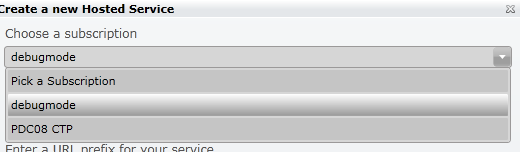
3. You will get below Popup Window to create new hosted service.

4. Very first choose the Subscription from drop down. I have two subscription listed there. I am choosing debugmode subscription.
5. Next name of the service need to be provided. You are free to provide any name for the hosted service. I am providing here name HosteTempService of the service. After provide URL of the service. I am providing URL as HosteTempService.cloudapp.net . This hosted service will be accessible at http://debugmode.cloudapp.net/

6. After providing Service name and URL , we need to choose the region or affinity group . So far Microsoft provided 9 regions. If you want you can create your own Affinity group here also.

To create Affinity group, select Create or Choose affinity group radio button .
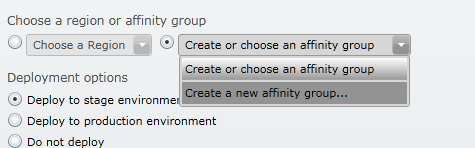
From drop down select, create a new affinity group option. Give name of the Affinity group and select the desired location for affinity group.

7. Select the Deployment option. You can choose option not to deploy also. Later you can configure the deployment. Check the checkbox, if you want to start newly created service just after successful deployment.
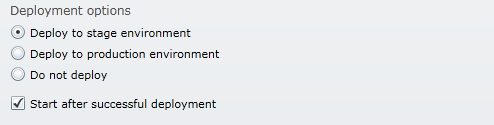
8. Give name of the Deployment. Select configuration file and package file of the application to be hosted in this service and click on Ok button.

In later posts we will see how we could add a certificate in hosted service. After clicking on Ok button you will see newly created hosted service is listed.
Discover more from Dhananjay Kumar
Subscribe to get the latest posts sent to your email.
 Dhananjay Kumar
another racist program !! Africa is not in the list !!