In my trainings, often I get a question from junior developers that how to clone a Git repository in the visual studio? Perhaps it may be very simple for senior developers, however for the developers who struggle to get it right steps are discussed below,
Step 1
Find the URL of the remote git repository. For GitHub repository URL can be found as shown in the image below. Copy the URL from here.

Step 2
Launch Visual Studio and from the View select Team Explorer. In the Team Explorer window select Clone.

On clicking Clone, you will get an option to provide the URL of the Git repo and the choose folder in which repository will be cloned. In the URL section paste the remote repository URL as whon in the below image:

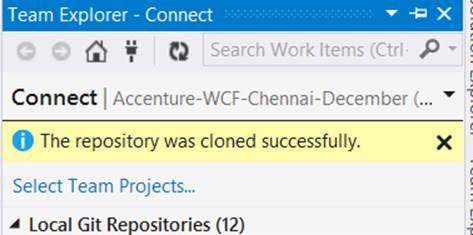
As the last step click on the Clone and the remote Git repository will be cloned in the Visual Studio in the given folder. If everything goes right you will get success message as shown below.
I hope it helps. Thanks and Happy Coding.
Discover more from Dhananjay Kumar
Subscribe to get the latest posts sent to your email.
 Dhananjay Kumar
One thought on “How to Clone a Git repository in Visual Studio”