In this post we will learn to work with the app bar in a WinJS based Windows Store application. Let us start with creating an app bar. The app bar can be created by setting the data-win-control value of a div to WinJS.UI.AppBar.
<div data-win-control="WinJS.UI.AppBar" data-win-options="{placement:'bottom'}">


</div>
Now you can add command buttons in an app bar as follows:
   <div data-win-control="WinJS.UI.AppBar" data-win-options="{placement:'bottom'}">
        <button data-win-control="WinJS.UI.AppBarCommand"
                data-win-options="{id:'cmdhome',icon:'home',section:'selection',tooltip:'home'}"></button>
        <button data-win-control="WinJS.UI.AppBarCommand"
                data-win-options="{id:'cmdsave',icon:'save',tooltip:'click to save'}">
        </button>

    </div
As of now we have added two command buttons with the icon, tooltip etc. A command button can be added to a app bar using the button control attributed with the WinJS.UI.AppBarCommand attribute.
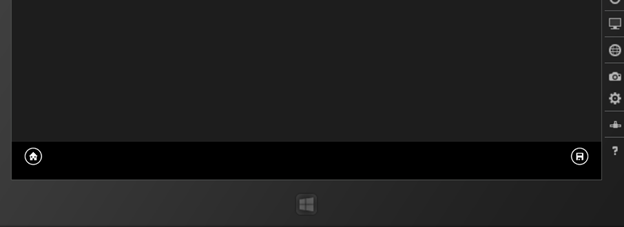
Let us say you want to add a flyout on the click of the app bar command. That can be added in two steps.
<div id="volumeFlyout"
         data-win-control="WinJS.UI.Flyout">
        <h3>Volume</h3> <input type="range" />
    </div>
As the second step we can use this flyout as option in app bar command. This can be done as follows
<button data-win-control="WinJS.UI.AppBarCommand"
                data-win-options="{
            id: 'flyout',
            icon: 'volume',
            label: 'Volume',
            type: 'flyout',
            flyout: select('#volumeFlyout')}"></button>
On running application you will find that click of volume command gives a flyout .

You can also style the app bar. For example app bar color can be changed using the CSS a below,
.win-appbar
{
    background-color: red;
    border: 3px solid blue;
}
On running you will find that app bar color has been changed as shown below:

You can change the image of the icons using the CSS shown below:
.win-appbar .win-commandimage
{
    color: rgb(28, 160, 218);
}
On running you will find that app bar color has been changed as shown below:

You can apply many such style to app bar and its commands. You can attach event to the command buttons and call a function to perform a task.
I hope this post is useful. Thanks for reading.
Discover more from Dhananjay Kumar
Subscribe to get the latest posts sent to your email.
 Dhananjay Kumar