Open Visual Studio 2010 and create a Visual Web Part project as selecting from SharePoint 2010 tab

Now provide name of the site where you want to deploy the web part

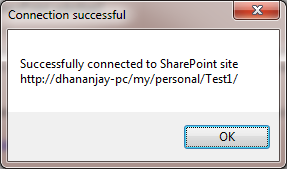
Click on Validate button to validate the site. If you are able to connect and get below message then we are we are good to go.
Open VisualWebPart1UserControl.ascx and add below script

After adding above script add

Now add below script,

Inside script tag , write a function
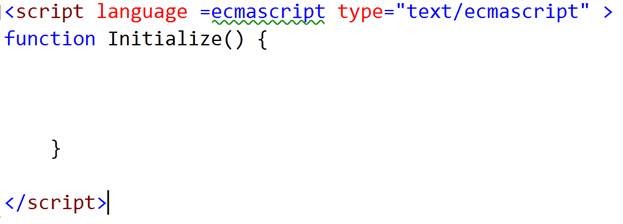
And now u can see that in this function IntelliSense is working
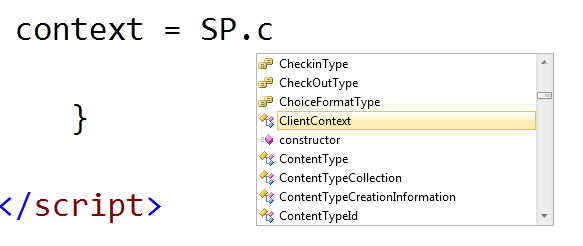
So in JavaScript function it would be working like below

Discover more from Dhananjay Kumar
Subscribe to get the latest posts sent to your email.
 Dhananjay Kumar
Cool man! I wanted this from such a long time! I’ll try it today itself.
When Copy and Paste information, do you actually BOTHER to verify that it works ??? If you had taken a little more time you would find out that there are problems with this at the moment.
I am sorry it did not work for you… for me what I explained worked dude … and I will appreciate if you come with your real name , if you got ball….