Objective
This article is going to explain , how we can use AZURE table. This article will explain how to create a stroage account and then modify the connection string in exsiting azure application using local development storage.
Note : This article is part 2 of series of article , so I recoomend please go through this article before redaing this one.
You can see video of this article here
Step 1
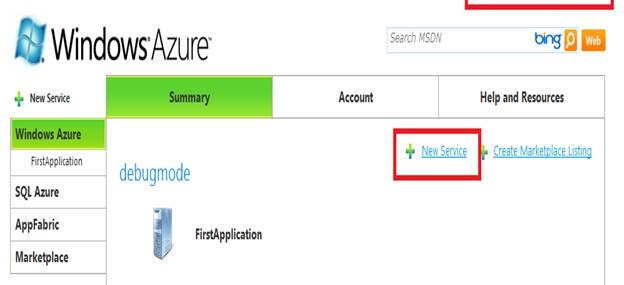
Login to your Azure portal with your live credential. After your successful login , you can see the below screen . Just click on New Service.
Step 2
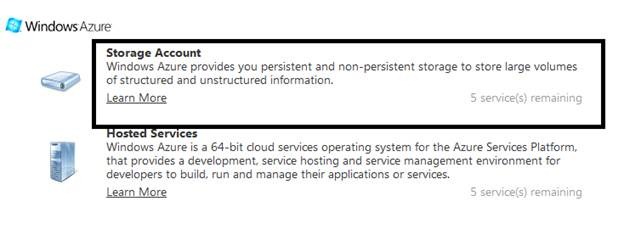
Then you need to select Storage account from given options. As you going to create account for windows azure storage .
Step 3
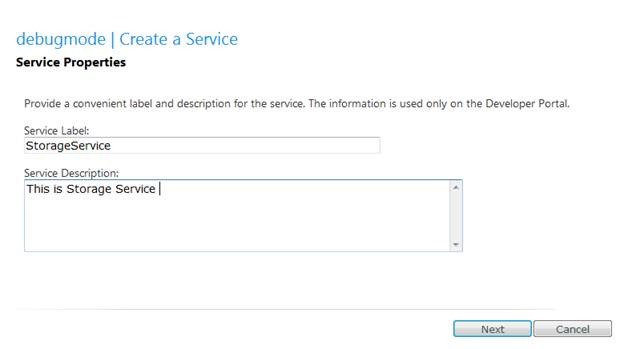
In this step , you need to provide service label and service description .
Step 4
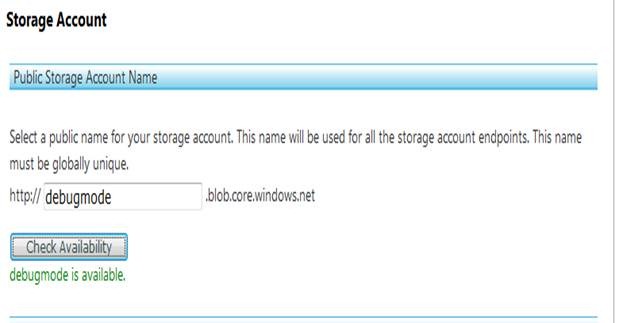
You have to provide a unique name here. I am providing debugmode as unique name.
Step 5
In this step you need to set the affinity group. If you don’t want to put your storage account in a particular affinity group, you can select the region of your own.
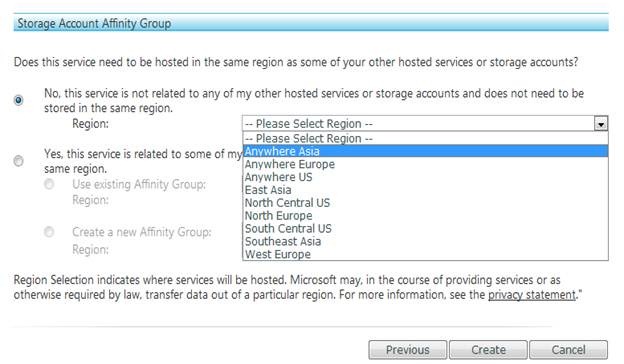
And now click on Create
Step 6
Once you click create, you can see three end points has been created for you in azure storage.
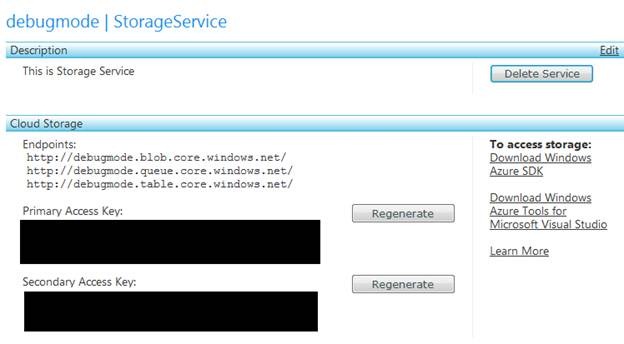
Note: Primary access key and secondary access key has been blacked out
Accessing Windows Azure table
If you are referring the article here , then navigate to step 5. Step 5 explains how to set the connection string. You will have to modify the connection string to use Azure table.
Step 1
Click on Webrole 1 in solution explorer.
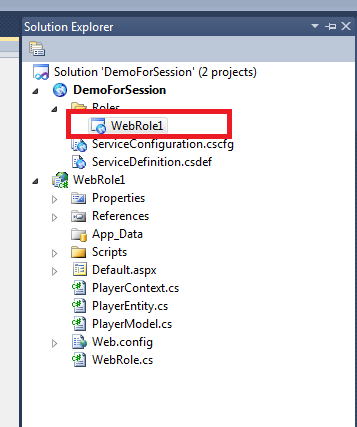
Step 2
Click on the setting in the tab
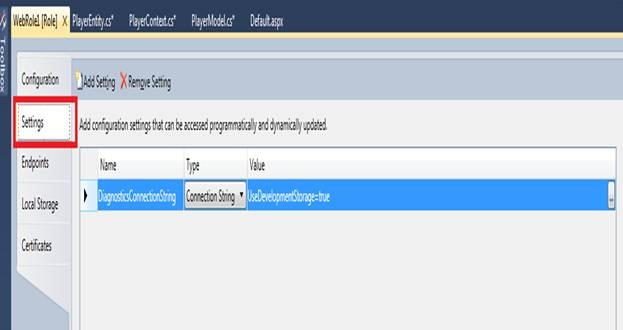
Step 3
In the top select add setting

Step 4
When you add a setting a setting will get added. Now from drop down , select Connection string as type.
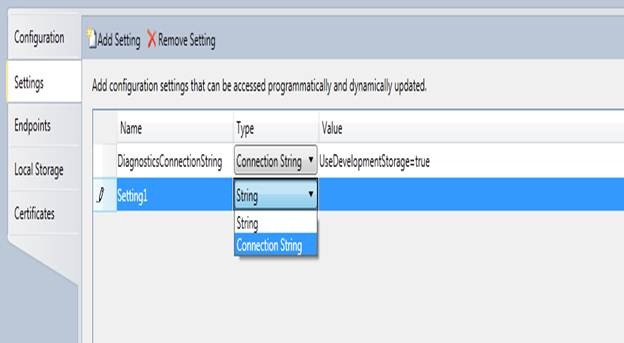
Step 5
When you click to set the value, you will get the below child window. Select Enter storage credentials
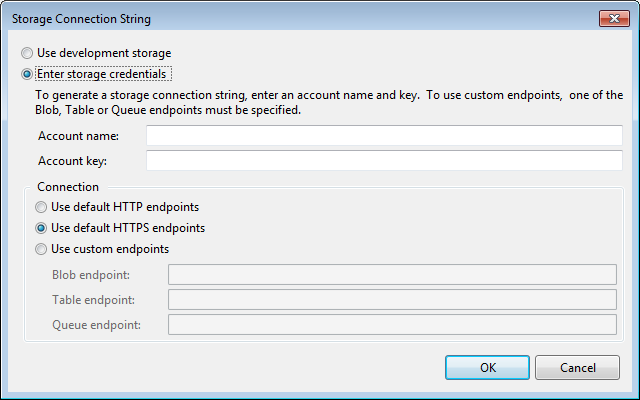
Now you need to provide
1. Account name
2. Account Key
Now to provide these two information , copy and paste below two things from your azure portal. In my case account name is debugmode and account key (The blacked out) .
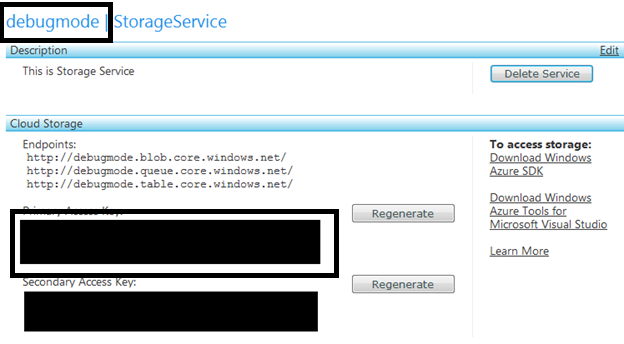
Once you provide these two details, leave the default setting and press ok.
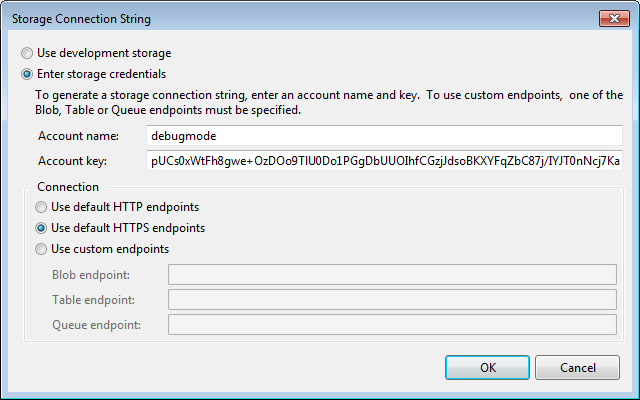
You can see in setting tab a value has been added.
Next and last step , what you need to do is open WebRole.CS file and put the setting name from previous step at these two below places .

After performing above steps, now your application has been modified to use Azure table.
I hope this article was useful. Thanks for reading Happy Coding.
Discover more from Dhananjay Kumar
Subscribe to get the latest posts sent to your email.
 Dhananjay Kumar
Thank you, that saved me a great deal of time. How many decades have you spent learning Microsoft SQL? You seem like a bit of an epic legend at it!
Thanks again, Giulici.