Query String allows you to pass values between the asp.net pages.
Let us say, you are navigating to below URL
In above URL, you are navigating to a page called Add.aspx and Number1 and Number2 are query string to page Add.aspx.
To create Query String,
- Add a question mark (?) to URL.
- After Question mark, give variable name and value separated by equal to (=).
- If more than one parameter need to be passed then separate them by ampersand (&).
To read query String,
Say your URL is,
http://localhost:12165/Add.aspx?Number1=72&Number2=27
Then to read query string, on Add.aspx

You can read by passing exact variable name in index or,

You can read, by passing index value as above.
Now, I am going to show you a very basic sample,
- I will create a page with two text boxes and one link button.
- I will pass text boxes values as query string to other page on click event of link button.
- On the other page, I will read the query string value and will add them in display in a label.
I have created a new asp.net application. Then I dragged and dropped two textboxes and one link button on the page. On click event of link button, I am performing the below operation.

I am constructing the URL, as to navigate to Add.aspx page and then appending two query strings from textbox1 text and textbox2 text.
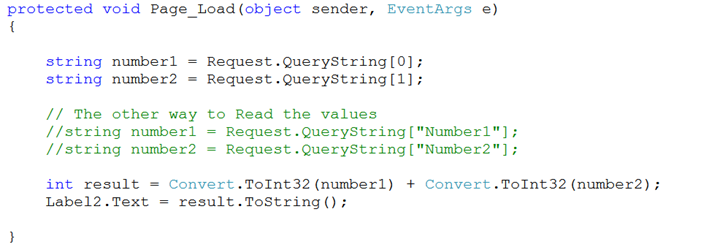
Now, add a page to project say Add.aspx . Drag and drop a label on the page. On the page load event perform the below operation.
 \
\
So, when you run the application you will get the output as below,

For your reference, the whole source code is given below,
Default.aspx.cs
1 using System;
2 using System.Collections.Generic;
3 using System.Linq;
4 using System.Web;
5 using System.Web.UI;
6 using System.Web.UI.WebControls;
7
8 namespace queryparameterexample
9 {
10 public partial class _Default : System.Web.UI.Page
11 {
12 protected void Page_Load(object sender, EventArgs e)
13 {
14
15 }
16
17
18 protected void LinkButton1_Click(object sender, EventArgs e)
19 {
20 string urltoNaviget = “~/Add.aspx?Number1=” +
21 TextBox1.Text +
22 “&Number2=” +
23 TextBox2.Text;
24
25 LinkButton1.PostBackUrl = urltoNaviget;
26 }
27 }
28 }
29
Add.aspx.cs
1 using System;
2 using System.Collections.Generic;
3 using System.Linq;
4 using System.Web;
5 using System.Web.UI;
6 using System.Web.UI.WebControls;
7
8 namespace queryparameterexample
9 {
10 public partial class WebForm1 : System.Web.UI.Page
11 {
12 protected void Page_Load(object sender, EventArgs e)
13 {
14
15 string number1 = Request.QueryString[0];
16 string number2 = Request.QueryString[1];
17
18 // The other way to Read the values
19 //string number1 = Request.QueryString[“Number1”];
20 //string number2 = Request.QueryString[“Number2”];
21
22 int result = Convert.ToInt32(number1) + Convert.ToInt32(number2);
23 Label2.Text = result.ToString();
24
25 }
26 }
27 }
I hope this post is useful. Thanks for reading. Happy Coding.
Discover more from Dhananjay Kumar
Subscribe to get the latest posts sent to your email.
 Dhananjay Kumar
бесплатные игры онлайн играть сейчас
Thank you for this timely blog post. This really is precisely what I have been hunting for.
nice explanation for beginners. Hope you will share some advanced things about querystring.